
TEXAS' MOST SUCCESSFUL LITTER-FREE campaign
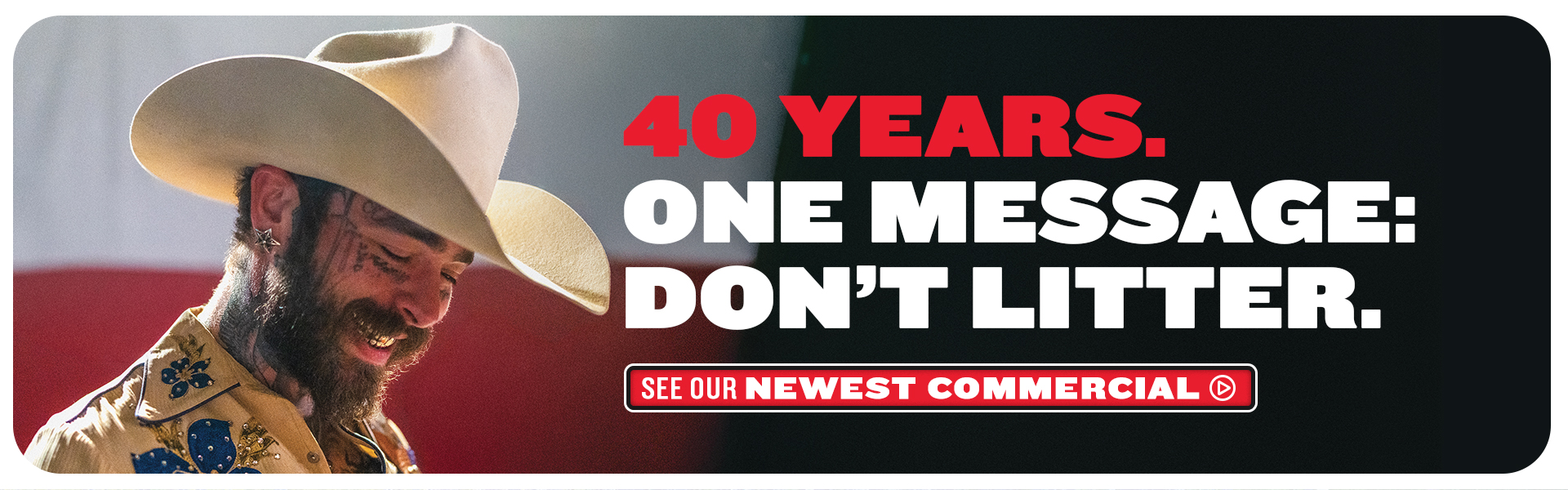
Since 1986, the Texas Department of Transportation has educated everyone that Don’t mess with Texas® means don’t litter. Through commercials, partnerships, and trash clean-up efforts, the phrase “Don’t mess with Texas” has significantly helped reduce litter in our state. A litter-free Texas is better for us, our families, and our economy. Learn more about the history of this famous and essential campaign.
ABOUT US
Don’t mess with Texas only works when we all work together. We need y’all to do your part and help us keep Texas clean. Luckily, there are many ways to help keep litter off our roads. Find out how you can help keep Texas litter-free.
GET INVOLVED


TEACHING TEXAS
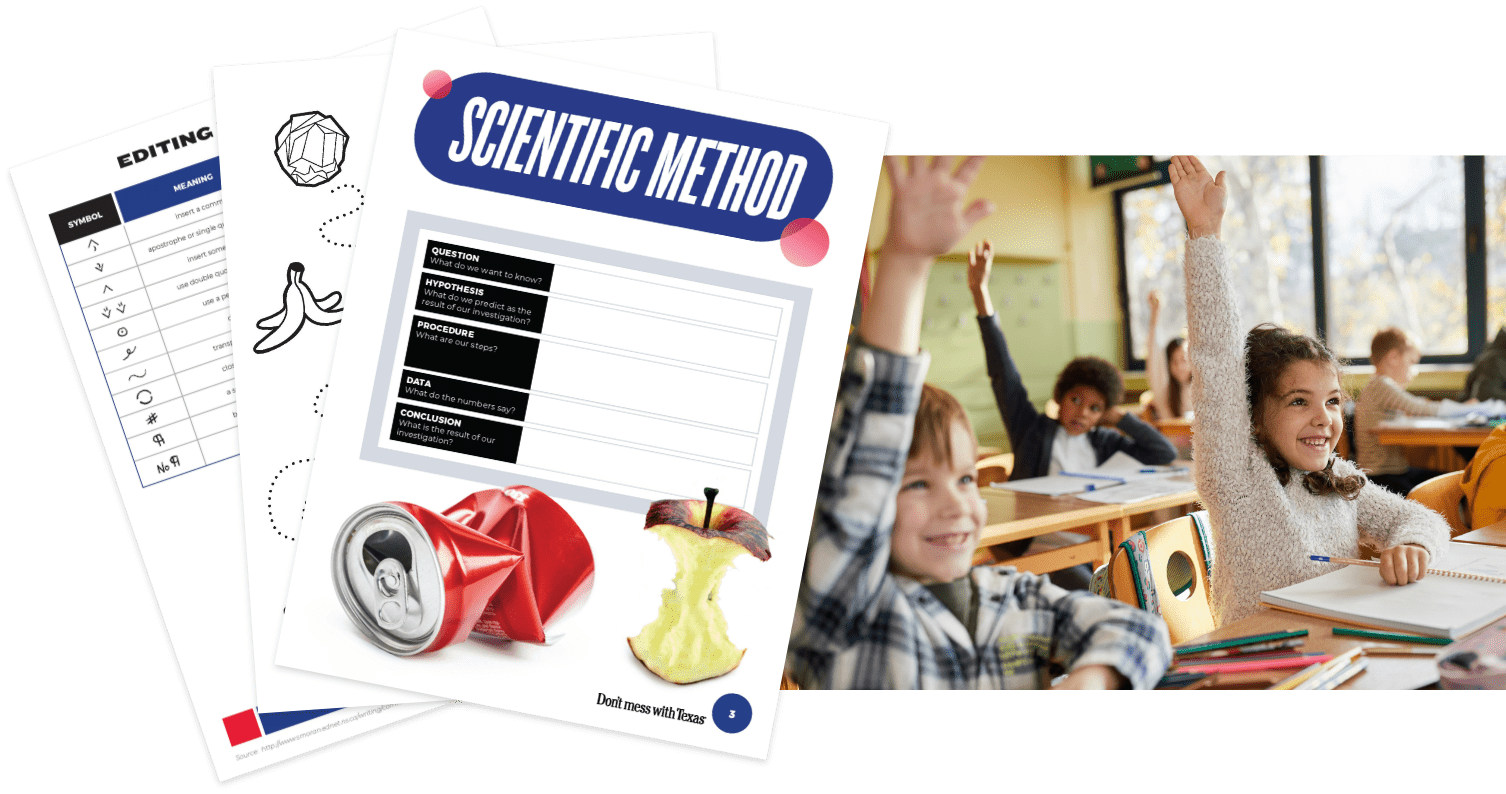
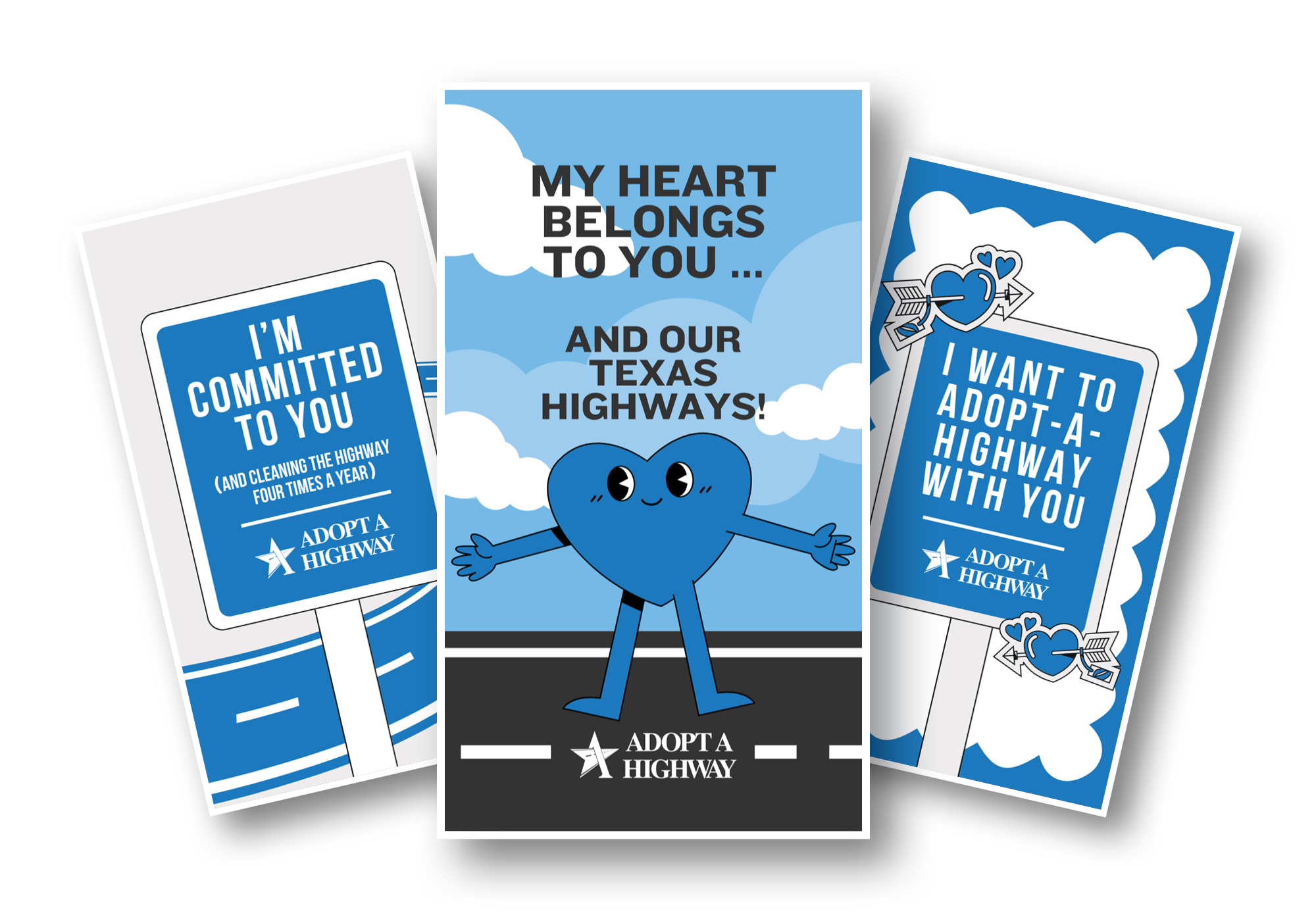
Teaching the next generation about the importance of keeping Texas clean has been a part of the Don’t mess with Texas campaign from the start. Now, we have more resources and facts than ever to help teach Texas students that Don’t mess with Texas means don’t litter.
EDUCATION
Have questions about the campaign? Take a look at our FAQ page. If you have a litter-free event that you’d like us to know about or want to learn about partnerships, feel free to reach out to us.
CONTACT US